Data Set Findings
What is the Data Set Findings Report?
The Data Quality Data Set Findings Report allows you to search for a particular data set and generate, view, copy, print, and export the report to an Excel or CSV file format.
Note As of the 2022.08 release, PDF is no longer a supported file format for exporting and printing reports. These functions are now restricted to the CSV file format only.
Steps
- Login to the Collibra DQ instance and click the
 Reports icon in the left navigation pane.
The Reports page opens. - Select the Data Set Findings tile.
- In the search bar in the upper right corner, enter the name of your target data set.
A list of available data sets populates in the drop-down menu. - Select the data set you want to view and export results.
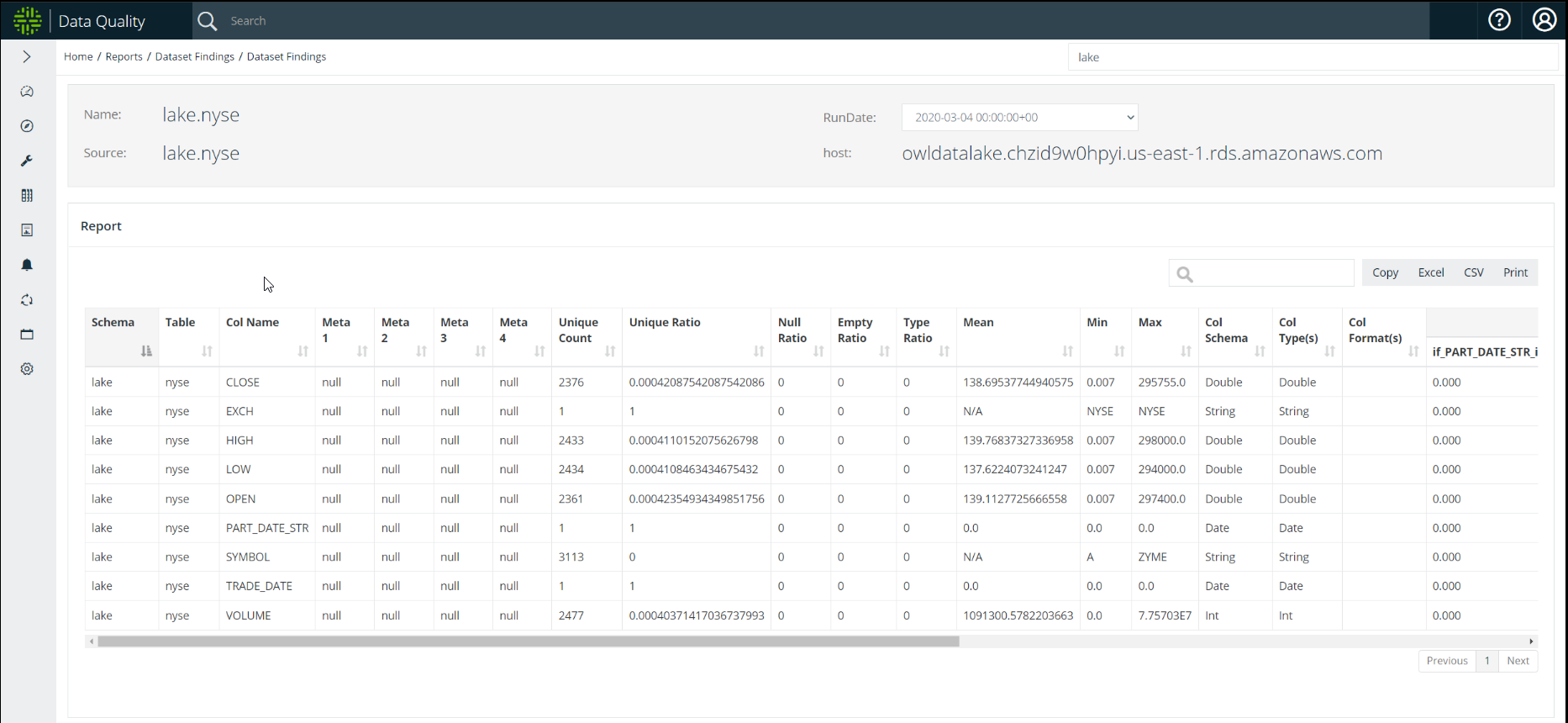
The Data Set Findings page displays for your data set.
The report includes the name, source, RunDate, and host of your data set, as well as columns that highlight specific data about it. - Select the RunDate from the drop-down list to display the data in the table for that particular RunDate.
- Toggle the
 icon at the top of the column to sort the data that displays in the columns in ascending or descending order.
 - Filter the report results by entering information in the search bar. For example, if you enter a number in the search field, any report result that includes the number displays.
- Click Copy, Excel, CSV, or Print at the top right of the columns to copy, print, or export your reports.
- Navigate the pages of your report by clicking the Previous and Next pagination buttons, located bottom-right of the columns.
The following screenshot is an example of a Data Set Findings Report for the lake.nyse data set.
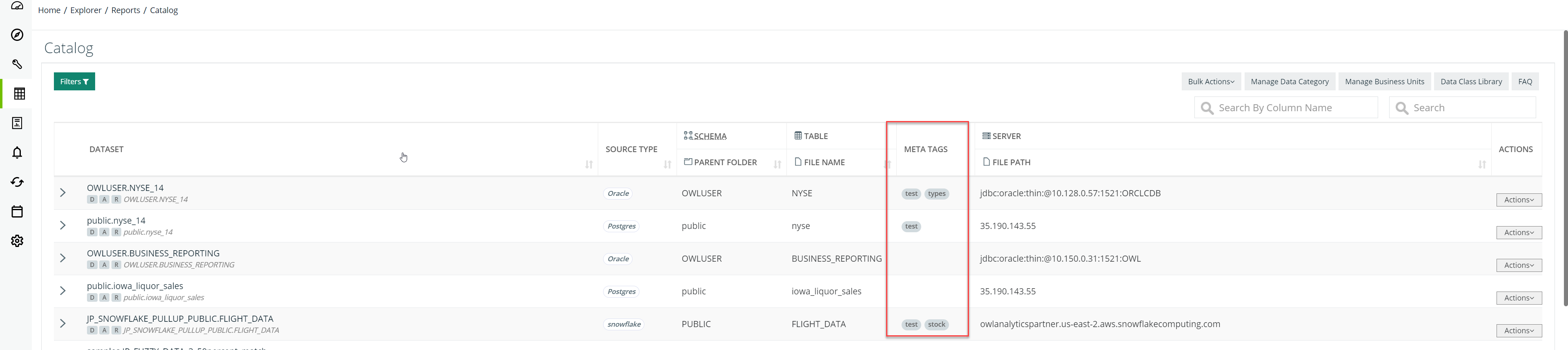
Meta fields can be used to classify data sets. You can assign Meta tags by clicking Edit in the Actions dropdown for a data set in the DQ Catalog. See Collibra DQ Catalog for more information.
The meta tags you added populate in the META TAGS field..